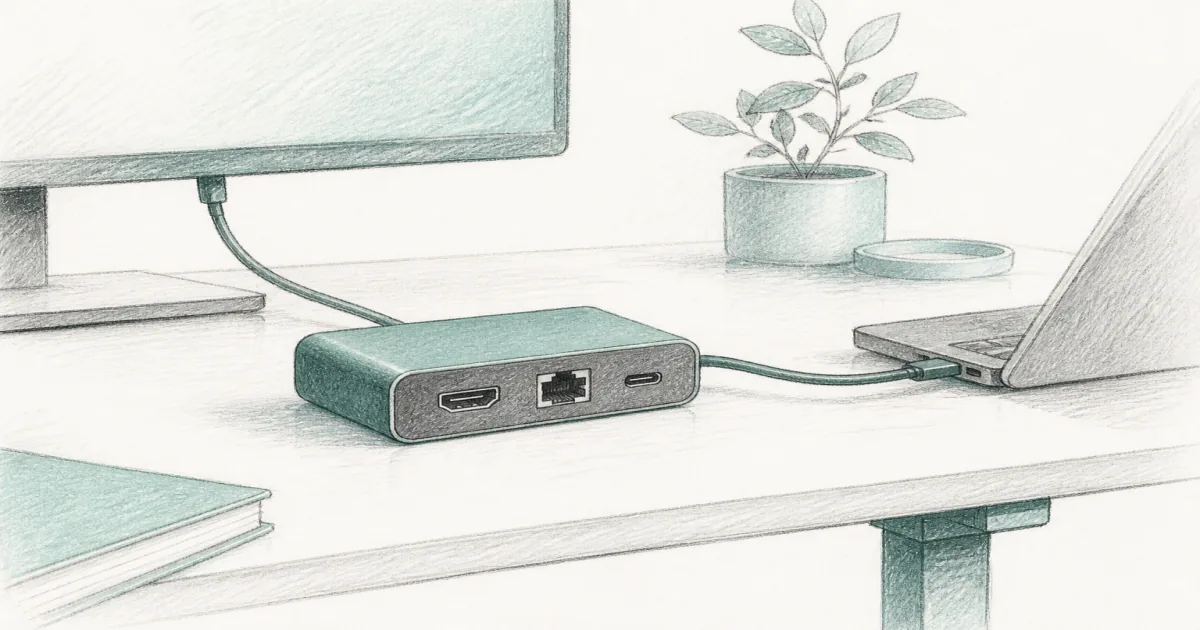
Best USB-C Docking Station (2026): Dual Monitor Desk Docks
Desk accessories
The best USB-C docking station turns one laptop cable into monitors, Ethernet, USB ports, and charging. Start with Anker for dual HDMI, or UGREEN Revodok when one display is enough.
Our picks
The best USB-C docking station is the desk brick that turns a thin laptop into a real workstation. You want monitors, Ethernet, USB ports, and charging without a rat's nest of dongles. That is a different job from a compact USB hub for desk, which is usually lighter and often limited to one clean display.
Two things decide the purchase before ports do: how many screens your laptop can actually drive, and whether you already own the wall charger the dock needs. Get those wrong and a $54 dock still shows one picture.
Browse more desk accessories after the ports are sorted. Raise the laptop with a laptop stand for desk if the screen still sits too low beside your monitors, and see the laptop docking station guide if you want a Thunderbolt-class dock instead.
What does a USB-C docking station actually do?
A USB-C dock routes monitors, Ethernet, USB devices, and power through one cable, so you plug in once and the whole desk wakes up. The dock itself does not add screen bandwidth your laptop lacks, so check the host before you buy.
That single job is why docks beat a pile of adapters: one cable to the laptop, and the monitor, network, keyboard, and charging all land at the same time. The limit is the laptop's port. If it supports DisplayPort Alt Mode and Power Delivery, a dock can carry video and charge. If it only drives one external display natively, no cheap hub invents a second one.
Do you need DisplayPort Alt Mode?
Yes, if you want video over USB-C. A laptop USB-C port that supports DisplayPort Alt Mode carries monitor signal; a plain data-only port does not. Check your laptop's spec sheet, because the same shaped port can differ by model.
How many screens can one cable drive?
One USB-C cable can drive as many screens as the laptop's GPU allows, not as many as the dock advertises. Windows laptops with a capable GPU often extend to two; many Apple silicon Macs without a dedicated display engine show one unique picture.
What is the difference between a dock and a hub?
A dock adds monitors, Ethernet, and charging together; a hub usually expands ports for travel. A USB hub for desk is lighter and cheaper, while a dock is meant to stay plugged into one desk.
Dock vs hub vs power strip
If the standing desk still yanks floor cords when it rises, fix power and cable management first. Then add the dock so device cables stay short on the desktop.
Top pick: Anker dual HDMI 8-in-1
The Anker Laptop Docking Station Dual Monitor 8-in-1 is the docking station default for most dual-monitor home offices. You get two HDMI ports, Gigabit Ethernet, two USB-A 3.0 ports, SD and microSD slots, and up to 85W passthrough charging when you add a strong PD wall charger. It is rated 4.5 stars across 35,186 ratings at $53.99, and Amazon reports 10,000+ bought in the past month.
Use it on Windows when you want two extended screens without buying a triple-monitor brick. One HDMI runs 4K at 60Hz; two HDMI ports split the bandwidth to 4K at 30Hz. On macOS, expect many dual HDMI docks to mirror instead of extend. If you need two unique Mac exteriors, look at DisplayLink or Thunderbolt hardware that matches your machine.
It needs a 100W PD wall charger, sold separately, to hit that 85W figure. And note the port map: the USB-C port is PD-IN only, not a data port, so this is a dock for USB-A devices rather than a second USB-C peripheral.
Shop the Anker dual HDMI docking station
Compact single display: UGREEN Revodok 6-in-1
The UGREEN Revodok 6-in-1 is the compact option when one HDMI monitor, Gigabit Ethernet, and PD charging are the whole job. It is lighter than a full dual dock and overlaps the USB hub for desk picks on purpose: same cable class, smaller ambition. It is rated 4.5 stars across 4,533 ratings.
Skip it if you already know you need two extended external displays. Buy the Anker instead.
Shop the UGREEN Revodok 6-in-1
How the two docks compare
The Anker costs more and needs its own charger, but it is the only one of the two that can drive two Windows displays. The UGREEN is the cheaper, smaller choice when one screen is the plan.
Do you need a separate power brick for a USB-C dock?
Usually yes. The Anker passes up to 85W to the laptop, but it does not include the 100W USB-C PD wall charger that figure assumes. Without one, the dock still works but your laptop charges slowly or not at all.
Plan the charger into the price. A 100W USB-C PD charger costs roughly as much as the dock itself, so the honest out-the-door number for the Anker setup is close to double the sticker. Many laptops already ship with a suitable brick; if yours does, you are ahead. If not, budget for it before you order the dock.
How many watts does your laptop need?
Match the charger to the laptop, not the dock. A 100W PD charger feeds the Anker's 85W passthrough with room to spare, while a 45W phone charger will barely trickle. Check your laptop's original charger wattage and meet or beat it.
Can a dock charge two devices at once?
The dock shares its passthrough budget, so charging the laptop and a tablet at the same time slows both. Keep the laptop on the dock and charge small devices from a separate under desk power strip.
Why do two HDMI ports still give only one picture on a Mac?
Apple silicon Macs that lack a dedicated display engine route both HDMI ports to the same picture, so a cheap dual HDMI hub mirrors instead of extending. That is a limit of the laptop, not a broken dock.
On Windows laptops with DisplayPort Alt Mode and a capable GPU, the same dock extends to two screens. On a Mac, the fix is a DisplayLink dock or a Thunderbolt dock that matches your machine. Check your exact model before you buy, and do not assume "dual HDMI" means two separate Mac screens.
How much does a USB-C dock cost to own?
The Anker at $53.99 works out to about 5 cents a day over three years. The UGREEN at roughly $40 lands near 4 cents a day. Add the wall charger and the Anker runs closer to 9 cents a day.
The dock is the cheap part. A Thunderbolt or DisplayLink dock that unlocks more screens runs $150 to $350, several times the price of the cable-class docks above. If you only need two Windows screens and Ethernet, the 8-in-1 does the whole job for a fraction of that.
Should the dock live on the desk or under it?
Keep the dock on the rising desktop or a clamp tray so monitor and USB cables rise with the top on a standing desk. Park heavy brick chargers with your cable management for desk plan and an under desk power strip.
A dock that sits on the floor turns every cable into a hinge when the desk rises. If you use a monitor arm, leave slack loops at standing height so the dock cable never pulls taut. The same rule keeps the laptop side tidy: dock on the desk, charger in a tray, one short cable to the laptop.
Compatibility checks before you order
- Confirm your laptop USB-C port supports DisplayPort Alt Mode and Power Delivery.
- Count the monitors you will actually connect. Dual and triple behave differently by OS.
- Match cable types. HDMI-only screens need HDMI ports or adapters you already own.
- Budget a PD charger that can feed the dock's passthrough rating.
A dock cannot invent GPU bandwidth your laptop lacks. If the machine only drives one external display natively, DisplayLink or Thunderbolt hardware is what unlocks more screens.
Who should skip a full USB-C dock
Skip a full dock if you already own a working Thunderbolt dock, if you only need one HDMI output, or if you travel every day and want a finger-sized hub. A compact hub is the right buy for that smaller job.
A single-screen desk is the clearest case for the UGREEN or a plain USB hub for desk. You save money and desk space, and you avoid paying for a second HDMI port you will never use.
Bottom line
Buy the Anker dual HDMI 8-in-1 when the desk needs two screens and Ethernet. Buy the UGREEN Revodok 6-in-1 when one HDMI display is enough. Keep the USB hub guide for travel-light port expansion.
Frequently Asked Questions
What is the best USB-C docking station for a home office?
Start with the Anker dual HDMI 8-in-1 if you want two screens, Ethernet, and charging in one brick. Choose the UGREEN Revodok 6-in-1 when one HDMI display and a compact cable are enough.
Is a docking station the same as a USB hub?
Not really. A full dock is built for monitors, Ethernet, charging, and many ports in one brick. A compact USB hub for desk is usually lighter and often capped at one clean display output.
Will a USB-C dock charge my laptop?
Most of these docks support USB-C Power Delivery, but you still need a strong enough wall charger plugged into the dock. Plan on losing some watts to the dock itself.
Can one dock drive two or three monitors?
Yes on the right host. Triple-monitor docks often mix native video with DisplayLink. Read your laptop's GPU limits, and install DisplayLink software when the dock requires it.
Do MacBooks extend dual displays through cheap dual HDMI hubs?
Often no. Many dual HDMI hubs mirror on macOS. If you need two unique external screens on Apple silicon, look at DisplayLink docks or Thunderbolt hardware that matches your Mac.
Where should I place the dock on a standing desk?
Keep the dock on the rising desktop or a clamp tray so monitor and USB cables rise with the top. Park brick chargers with your cable management for desk plan.
Who should skip a full docking station?
Skip it if you only need one HDMI port and a couple of USB-A openings. A compact hub is enough then, and cheaper to replace if you travel weekly.
Do you need a separate power brick for a USB-C dock to charge the laptop?
Usually yes. The Anker 8-in-1 passes up to 85W, but it does not include the wall charger, so you need a 100W USB-C PD charger to hit that. Without one the dock still works, but your laptop charges slowly.